 vyn
vyn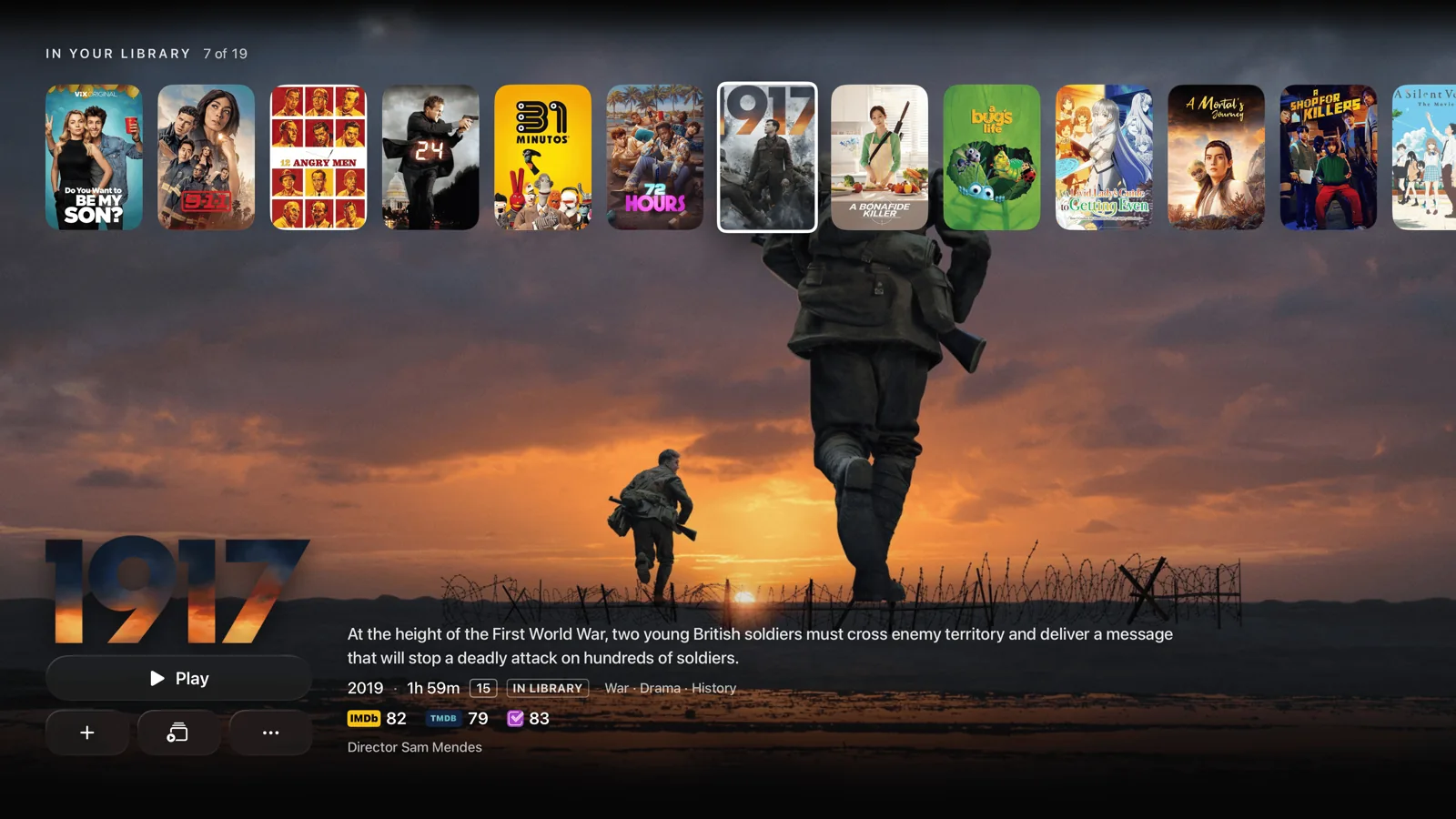
Your Jellyfin library, on Apple TV
Vyn connects to your own Jellyfin server so you can discover, track and play movies and shows in one place. Your server stores the media; Vyn is the player you use from the sofa with the Siri Remote. It does not include a server, movies or a streaming subscription.
Discovery and watchlists work before you connect a source. Once connected, Vyn can show which titles are available in your library. Finding a film in discovery does not mean it is available to play: you need an accessible copy on a connected source.
Before you connect
- Vyn on Apple TV: install the app from the App Store. You need tvOS 26.4 or later; check the device requirements.
- A running Jellyfin server: leave the computer or NAS that hosts your library switched on and connected.
- Your server address: use the address supplied by the person who manages the server, including its port or base path if needed.
- A Jellyfin user account: have your username and password ready, or a phone or computer already signed in for Quick Connect.
For your first connection at home, put Apple TV on the same home network as the server. A guest network may prevent the devices from reaching each other. You do not need to make Jellyfin public to watch at home.
How to connect Jellyfin to Vyn
- Open Libraries in Vyn, choose Add Library, then select Jellyfin.
- Enter your server address. For example, a local server might use 192.168.1.10:8096. This is an example: use your own server’s address.
- Select Connect. If Jellyfin offers Quick Connect, Vyn shows an approval code.
- On a phone or computer already signed in to that Jellyfin server, open the user menu, choose Quick Connect and enter the code shown on your TV. Vyn continues after approval.
- Let Vyn read the library. Then open a movie or episode and select an available Jellyfin source to start playback.
Prefer to sign in with a password?
After entering the address, choose Use Username & Password, enter your Jellyfin account details and select Sign In. Use this route if Quick Connect is unavailable or you cannot approve the code on another device. These are your Jellyfin credentials; you do not need a separate Vyn account.
Which server address should I enter?
Use the server’s address, rather than a link to a particular movie or its web-player page. If the server uses a base path such as /jellyfin, include that path. A local address only works on a network that can reach it; it is not automatically a remote address. The server owner can confirm the right address for your connection.
For server-side configuration, see Jellyfin’s networking documentation. Use the owner’s configured HTTPS address for remote access, and keep the server’s authentication and access controls in place.
Choose a source, audio and subtitles
A title can have more than one available version. Check the release information, including resolution, HDR and audio details, before selecting the file you want to play. During playback, use the player’s audio and subtitle controls to select the tracks available for that file.
If subtitles are consistently early or late, adjust subtitle timing. If they belong to a different cut of the film, choose a matching track instead: a timing adjustment cannot fix different scenes or edits.
Compatible sources can play in 4K with HDR formats including Dolby Vision on supported setups. Results depend on the file, network, Apple TV, display and audio equipment. Online playback and subtitles are included in Vyn’s free experience; additional sources require Vyn Plus.
If Jellyfin is not working
Vyn cannot reach the server
Check that the server is awake and Jellyfin is running. Open the same server address in a browser on a phone or computer on the same network as Apple TV. If it fails there too, check the address, port and network with the server owner first. If it works there, compare the address entered in Vyn and check whether Apple TV is on an isolated guest network.
The server responds, but sign-in fails
Try signing in to Jellyfin’s web interface with the same account. Check the username and password, and ask the administrator whether the account has access. If only Quick Connect fails, try Use Username & Password in Vyn.
A movie exists on the server but is not available in Vyn
First check that the same Jellyfin user can see the movie on the server. Let the initial library scan finish, then use Rescan Library on the Jellyfin connection page. Vyn matches titles using metadata identifiers such as TMDB, IMDb or TVDB IDs. If a title remains missing, check its identification in Jellyfin; an unidentified file or home video may not match a title in Vyn.
A file will not play, or keeps buffering
Try another title from the same server. If several titles fail, check the connection and server availability. If only one fails, try another available version and note its video, audio and subtitle formats. For buffering, compare a smaller file and, where possible, try a wired connection to help separate network limits from a file-specific problem.
Still stuck? Use Send feedback with your Vyn and tvOS versions, the affected file’s format, the error message and whether other titles work. Remove passwords, access tokens and private server addresses from screenshots before sending them.
Can I download Jellyfin movies?
Offline downloads are an iPhone and iPad feature with Vyn Plus; those versions of Vyn are coming soon. Apple TV playback is streaming-only. The mobile download flow supports compatible direct movie and episode files from Jellyfin, rather than live streams or transcoded HLS manifests.
A completed download stays on the device where it was saved. It does not sync through iCloud or create a new server library item. See the offline download guide for eligibility and storage details.
Available now on Apple TV
This guide covers Vyn on Apple TV. iPhone, iPad and Mac versions are coming soon. You can also connect Trakt or Simkl for watch tracking; these accounts do not replace the Jellyfin source needed to play your media. Read about watchlists and tracking or compare Vyn’s device experiences.